

Overview
This document explains how to integrate Nextcloud (SP) with the RCDevs OpenOTP Identity Provider (IdP) using the User SAML application.
The integration enables Single Sign-On (SSO) for Nextcloud users, allowing authentication through the OpenOTP Authentication Server.
- User is accessing SP for authentication
https://nextcloud.rcdevsdocs.com/index.php - SP sends AuthnRequest to IdP published on the following URL (the URL and application path may change according your setup):
https://sso.rcdevsdocs.com/openid/login_uid.php - IdP authenticates user
- IdP sends SAML Response
- SP (Nextcloud):
Verifies signature
Checks timestamps
Confirms audience & recipient
Extracts NameID & attributes
Creates user if not exist (default yes) - User is logged in (using its WebADM admin credentials)
Prerequisites
- A functional RCDevs WebADM/OpenOTP setup with SAML service enabled.
- Administrative access to RCDevs WebADM/OpenOTP.
- Nextcloud Server to be installed
- Administrative access to Nextcloud Server.
- Installed and enabled User SAML app:
https://apps.nextcloud.com/apps/user_saml
Note: To Install SSO & SAML Authentication mechanism in Nextcloud, log in as Nextcloud administrator, navigate to:
Settings → Apps → Integration → SAML authentication
and click Enable to activate the User SAML plugin.
If asked, choose Use built-in SAML authentication, click next and follow instructions displayed on screen
It will be enough to get SSO & SAML authentication support in Nextcloud
Configure SSO & SAML authentication in Nextcloud Server (SP configuration)
In Nextcloud, login as administrator and go to
Administration Settings → Security → SSO & SAML authentication
Ensure the User SAML app is enabled.
Use this direct link to access your Nextcloud Server instance.
https://nextcloud.rcdevsdocs.com/index.php/login?direct=1
Now we can start the proper configuration.
Go to SSO & SAML authentication and configure the following:
Global settings
Leave all settings unchecked
| Setting | Value |
|---|---|
| Only allow authentication if an account exists on some other backend (e.g. LDAP). | unchecked |
| Allow the use of multiple user back-ends (e.g. LDAP) | unchecked |
General
| Setting | Value |
|---|---|
| Attribute to map the UID to | uid |
| Display name of the Identity Provider | OpenOTP Authentication |
| Use POST method for SAML request | unchecked |
Note: Attribute to map the UID field value can be customized and refer to UserID Mapping setting in RCDevs IdP and it must match the configured value.
Use POST method for SAML request by default is unchecked but if needed, you can enable it.
Service Provider Data
| Setting | Value |
|---|---|
| NameID Format | Unspecified |
| X.509 Certificate of the Service Provider | empty - see hardening section |
| Private Key of the Service Provider | empty - see hardening section |
| Service Provider Entity ID (optional) | https://nextcloud.rcdevsdocs.com |
- Click on Show Service provider Settings to expand the menu.
- Choose Name ID format to be Unspecified
- X.509 certificate of the Service Provider and Private key of the Service Provider are not mandatory. See hardening section for more information.
- Set Service Provider Entity ID (optional)
https://nextcloud.rcdevsdocs.com
Note: This value is sent in the SAML AuthnRequest in the saml:Issuer attribute. This value will be used later to match aClient Policywhich will be created later in this documentation. It must be an URL! It cannot be just a hostname!
Identity Provider Data
Click on Show optional Identity Provider settings to expand the menu
| Setting | Value |
|---|---|
| Identifier of the IdP entity (must be a URI) | https://sso.rcdevsdocs.com/openid/index.php |
| URL Target of the IdP (Authentication Request endpoint) | https://sso.rcdevsdocs.com/openid/index.php |
| URL Location of the IdP where the SP will send the SLO Request | https://sso.rcdevsdocs.com/openid/index.php |
| URL Location of the IDP's SLO Response | https://sso.rcdevsdocs.com/openid/index.php |
| X.509 Certificate of IdP | Upload or paste the certificate obtained from the IdP metadata at https://sso.rcdevsdocs.com/ws/saml. |
| Request parameters to pass-through to IdP (comma separated list) | empty |
Attribute Mapping
Click on Show attribute mapping settings to expand the menu
| Setting | Value |
|---|---|
| Attribute to map the display name to | displayName |
| Attribute to map the email address to | email |
| Attribute to map the users groups to. | groups |
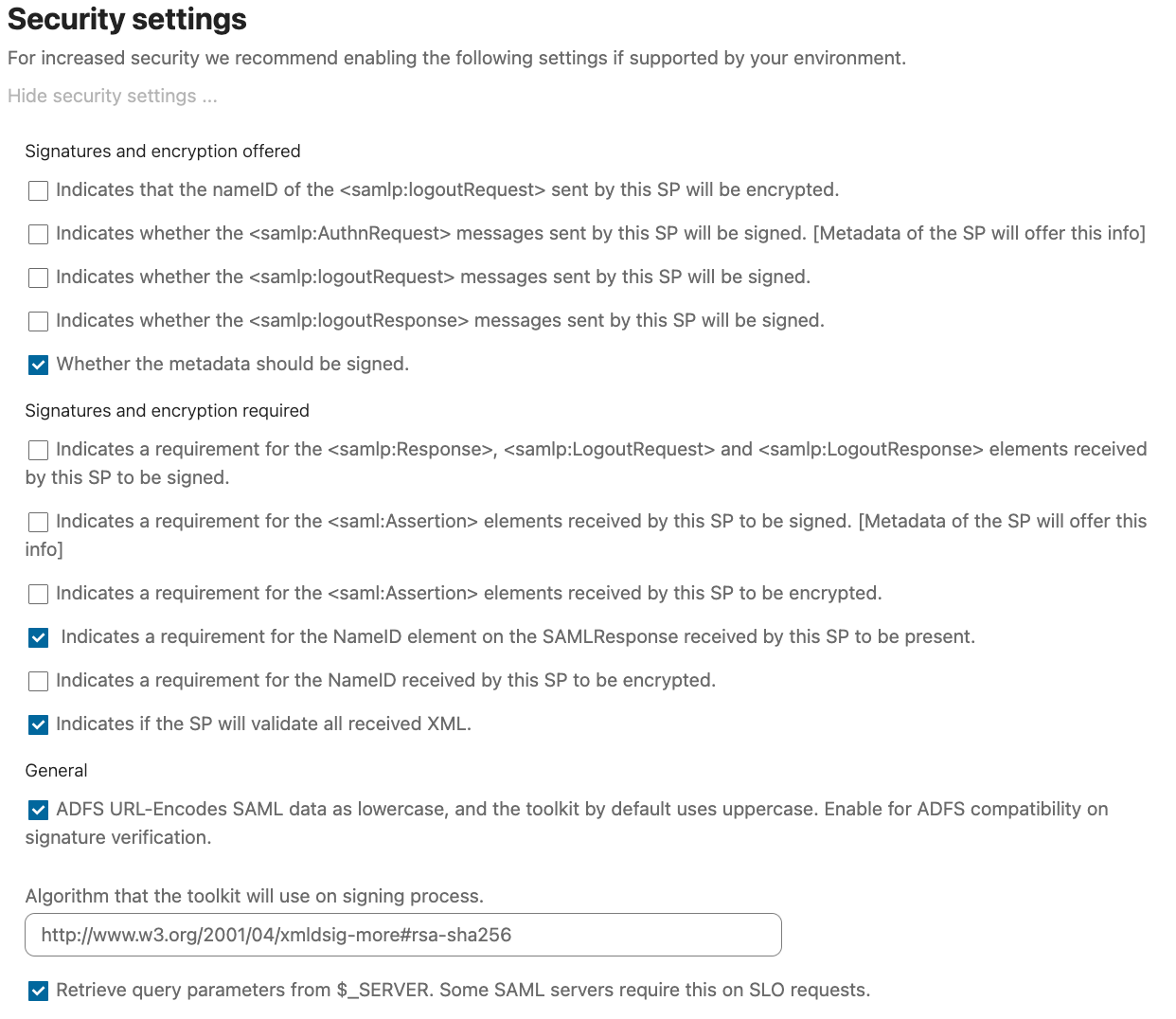
Security Settings
Click on Show security settings to expand the menu.
By default, all fields are not checked. Default settings:
| Setting | Value |
|---|---|
| Algorithm that the toolkit will use on signing process. | http://www.w3.org/2001/04/xmldsig-more#rsa-sha256 |
The following settings are working without encryption:
User Filtering
No customization is required in this section.
Nextcloud configuration on the IdP (Client Policy)
Configure Client Policy
Add a specific policy that will be applied particularly to Nextcloud.
Go to Admin → Client Policies → Add Client.
Name the policy Nextcloud and click Proceed → Create Object.
Configure Policy Settings
In the client policy page which was created now, configure the following:
| Parameter | Value |
|---|---|
| Friendly Name | Nextcloud |
| Client Name Aliases | https://nextcloud.rcdevsdocs.com |
| Default Domain | Your organization domain (e.g., rcdevsdocs.com) |
Scroll down to Default Application Settings, enable Application Settings, then click Edit.
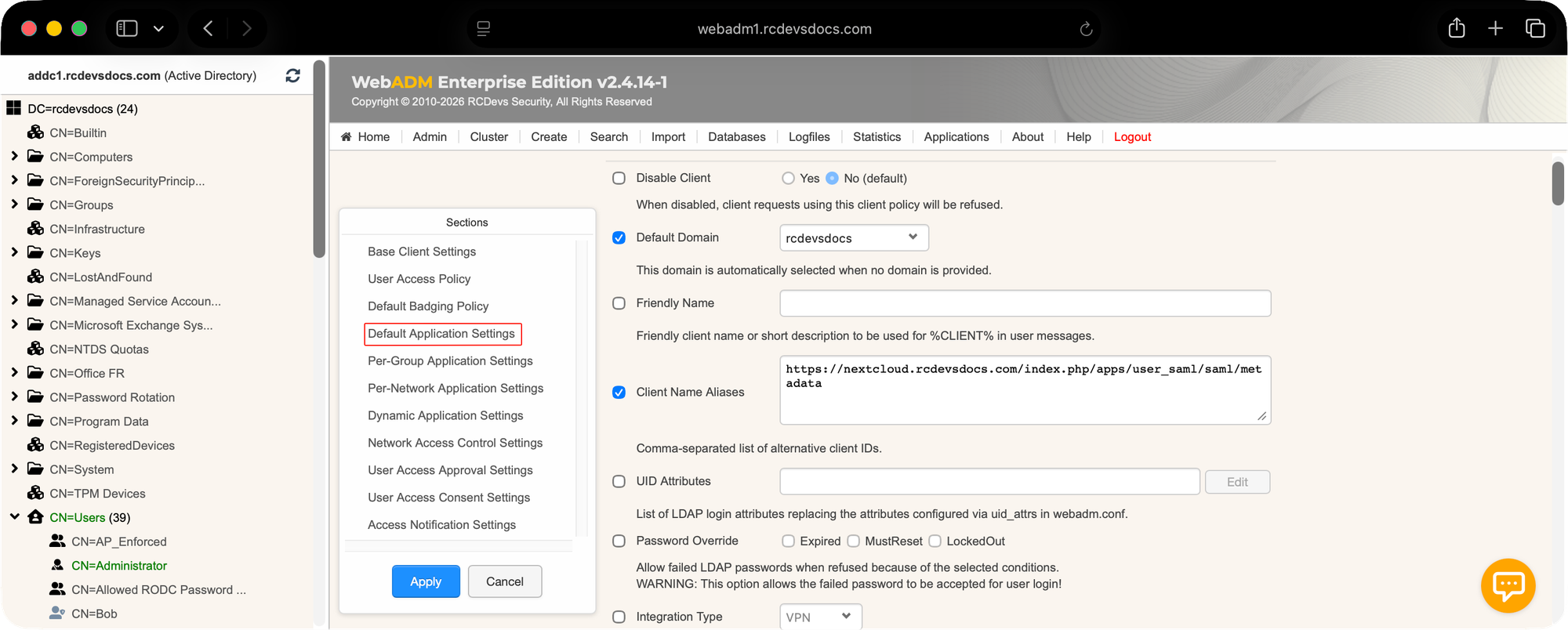
A new page will be displayed. Here you have to alter settings in the two main sections:
MFA Authentication Server
and
OpenID & SAML Provider
In MFA Authentication Server → Authentication Policy define the authentication policies you want to apply for Nextcloud logins.
| Parameter | Value |
|---|---|
| Login Mode | Ldap |
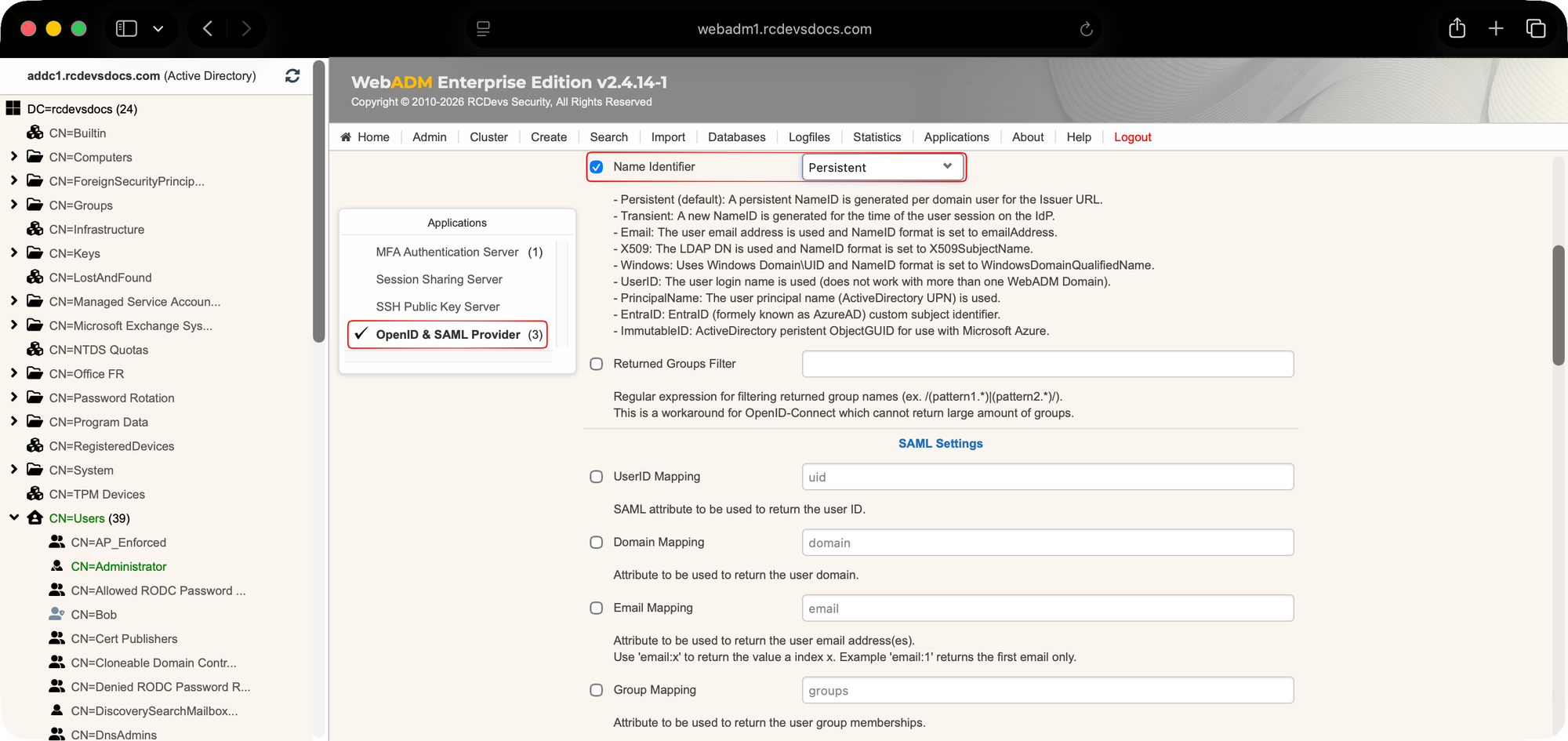
In OpenID & SAML Provider → SAML Settings →
| Parameter | Value |
|---|---|
| Name Identifier | Persistent (UserID, Email, Windows or other option should work, but start with Persistent) |
In OpenID & SAML Provider → SAML & OpenID-Connect →
| Parameter | Value |
|---|---|
| UserID Mapping | uid (what you set in Nextcloud at Attribute to map the UID to.) |
| Email Mapping | email (what you set in Nextcloud at Attribute to map the email address to.) |
| Group Mapping | groups (what you set in Nextcloud at Attribute to map the users groups to.) |
| Return Attributes | empty |
| or | |
| Return Attributes | displayName=cn (if you want to map Canonical Name to displayName) |
| Peer Certificate | No - see hardening section |
| Sign Entire SAML Response | No - see hardening section |
| Encrypt SAML Response | No - see hardening section |
| Assertion Consumer Service (ACS) URLc | No - it will be detected automatically |
| Logout Consumer Service URL | https://nextcloud.rcdevsdocs.com/index.php/login |
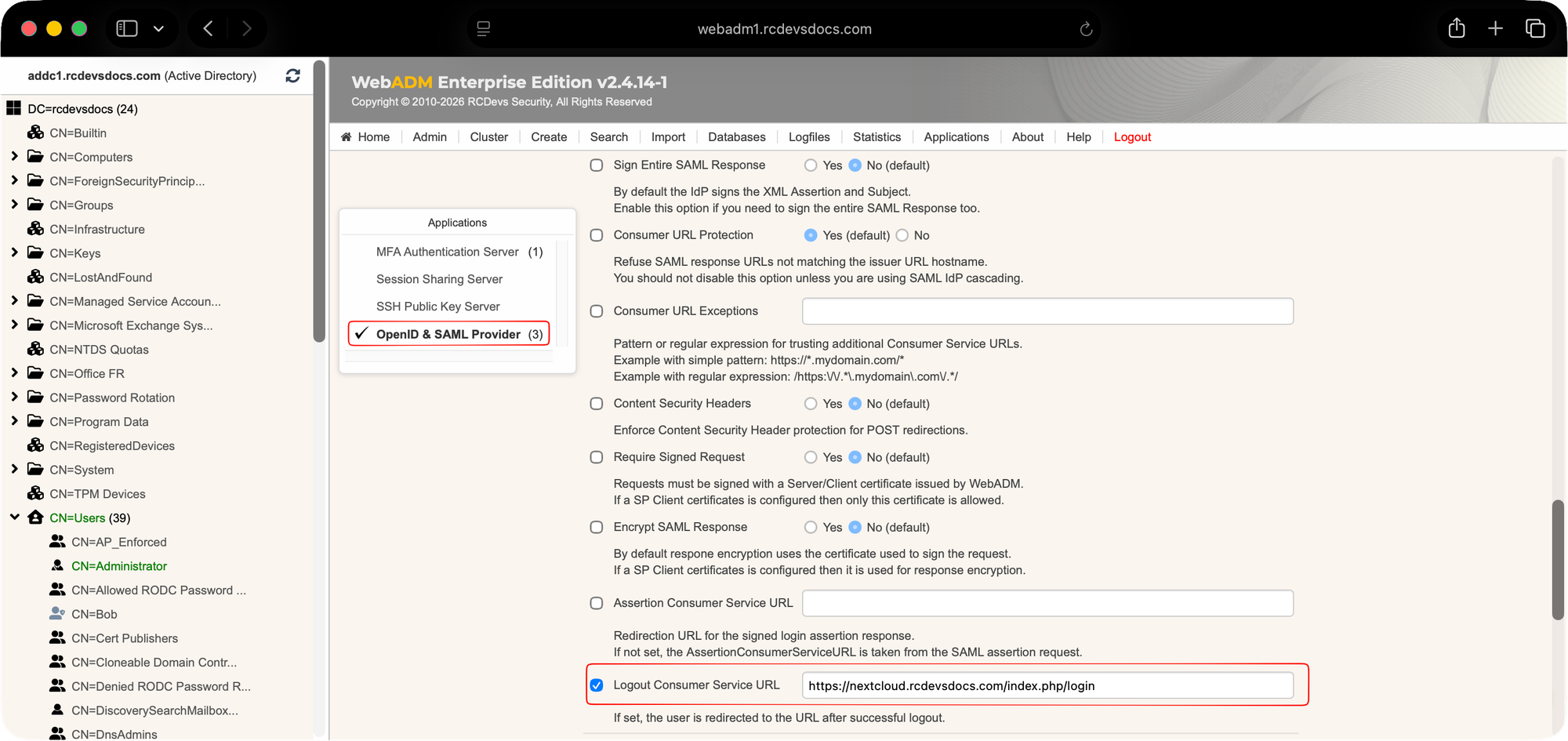
Click on Apply → and Apply again when redirected to the parent page, to save your settings and save your client policy.
Verification
- Log out of Nextcloud.
- Access your instance (e.g.,
https://nextcloud.rcdevsdocs.com). - You should be redirected to YOUR IdP login page RCDevs OpenOTP login.
- Authenticate with your OpenOTP credentials or MFA.
- Upon success, you are redirected back to Nextcloud as the authenticated user.
Hardening
In order to secure the access to Nextcloud server, we have to generate one pair of private/public key for Nexcloud service.
Note: You can generate a pair of certificates for your server by using WebAdm and accesing Admin → Create Server or Client Certificate section
Adjust depending your needs.
These certificates must be pasted in Identity Provider Data section in Nextcloud which was mentioned above.
| Setting | Value |
|---|---|
| X.509 Certificate of the Service Provider | copy here your Nextcloud public certificate |
| Private Key of the Service Provider | copy here your Nextcloud private key |
Also, the Nextcloud X.509 Certificate of the Service Provider must be pasted in WebAdm
To do that, follow this path in WebAdm: Admin → Client Policies → Nextcloud
Click on Default application settings → Application Settings → Edit
click on OpenID & SAML Provider scroll down, check Peer Certificate and paste here the certificate from Nextcloud → Service Provider Data – X.509 certificate of the Service Provider
Now, we are ready to explore which WebAdm and Nextcloud security options are available.
for WebAdm settings, all are located in: Admin → Client Policies → Nextcloud
Click on Default application settings → Application Settings → Edit
click on OpenID & SAML Provider section
and
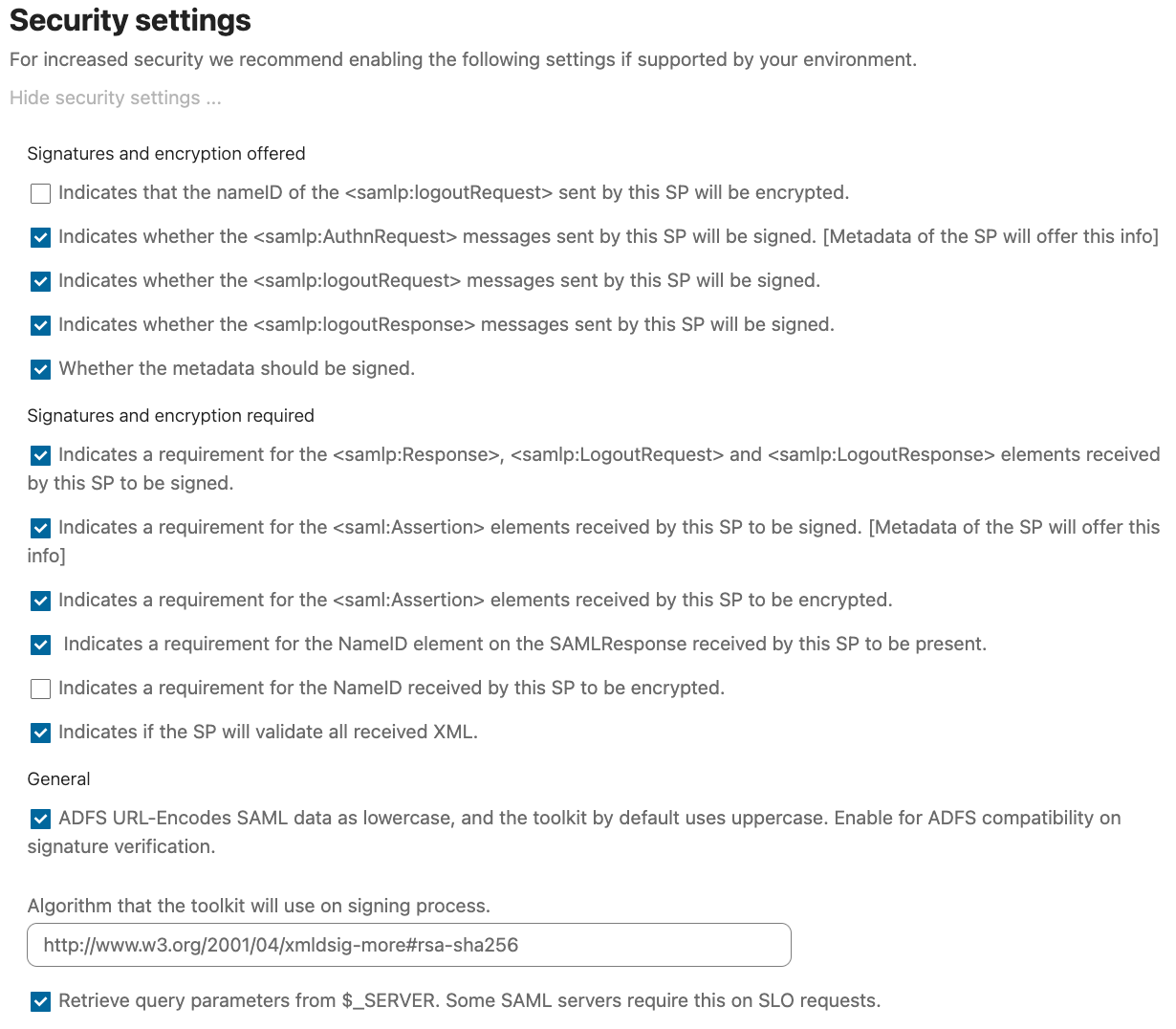
for Nextcloud settings, all are located in: Administration Settings → Security → SSO & SAML authentication → Security settings section
The following options have been tested and are supported by WebAdm:
| WebAdm Settings | Nextloud Setting |
|---|---|
| Require Signed Request set to Yes | Indicates whether the samlp:AuthnRequest messages sent by this SP will be signed. [Metadata of the SP will offer this info] set to Yes |
Note: If Require Signed Request is set to No in WebAdm (default), by enforncing signed AuthnRequest on Nextcloud side, it will not break or reject anything! This confirms just that Nextcloud AuthnRequests are always signed, even if WebAdm does not enforce it, do not require it!
| WebAdm Settings | Nextloud Setting |
|---|---|
| Sign Entire SAML Response set to Yes | Indicates a requirement for the samlp:Response, samlp:LogoutRequest and samlp:LogoutResponse elements received by this SP to be signed set to yes |
Note: Nextcloud (as SP) enforce that IdP (WebAdm) to sign entire SAML Response. This is not enabled by default in WebAdm, so set it as explained above.
| WebAdm Settings | Nextloud Setting |
|---|---|
| Sign Entire SAML Response set to No | Indicates a requirement for the saml:Assertion elements received by this SP to be signed. [Metadata of the SP will offer this info] set to yes |
Note: Nextcloud (as SP) enforce that IdP (WebAdm) to sign the saml:Assertion in SAML Response. This is default behavior in WebAdm, no action required.
| WebAdm Settings | Nextloud Setting |
|---|---|
| Encrypt SAML Assertion Response set to yes | Indicates a requirement for the saml:Assertion elements received by this SP to be encrypted. set to yes |
Note: Nextcloud (acting as the SP) requires the IdP (WebADM) to sign the <saml:Assertion> element in the SAML Response. This is not the default behavior in WebADM, so make sure to enable it as described above.
Also, ensure that the public certificate is configured in the X.509 Certificate of the Service Provider section above and in WebADM. If this option is enabled but the Nextcloud public certificate is not configured on both sides, or if the certificate is missing, the SAML authentication will fail.
In fact, all options in Nextcloud - Security Settings - works with above settings in WebAdm, with two exceptions which are not supported:
- Indicates that the namelD of the samlp:logoutRequest sent by this SP will be encrypted.
- Indicates a requirement for the NamelD received by this SP to be encrypted.
Troubleshooting
- Invalid certificate: Ensure both SP and IdP certificates match and are valid.
- Looping redirect: Check Entity ID consistency between Nextcloud and WebADM.
- Attribute mismatch: Verify that NameID and user attributes correspond to those provided by the IdP.
- Turn on Debugging level in Nextclound by editing its config file
config.php:
For example, edit /var/www/html/nextcloud/config/config.php and set
'debug' => true,
'loglevel' => 0,
Review logs in data/nextcloud.log.
[root@nextcloud ~]# tail -f /var/www/html/nextcloud/data/nextcloud.log
- Advanced troubleshooting: Install SAML-tracer and inspect https dialog between SP and IdP
https://addons.mozilla.org/en-US/firefox/addon/saml-tracer/
https://chromewebstore.google.com/detail/saml-tracer/mpdajninpobndbfcldcmbpnnbhibjmch?hl=en
https://support.esri.com/en-us/knowledge-base/user-a-saml-tracer-browser-extension-in-microsoft-edge--000033778
References
- Nextcloud SAML Plugin: https://apps.nextcloud.com/apps/user_saml
- SAML 2.0 Standard: https://docs.oasis-open.org/security/saml/v2.0/